acer laptop touchpad not working double click

Title: Fix Double Click On Touchpad Not Working
Channel: Tricks That Make you Smart
Fix Double Click On Touchpad Not Working by Tricks That Make you Smart
Acer Touchpad Double-Click Disaster? FIX IT NOW!
Acer Touchpad Troubles? Your Click-Fix Guide is Here!
Oh, the frustration! You're in the zone, crafting that email, navigating a spreadsheet, or perhaps, just browsing. Suddenly, bam! The Acer touchpad decides to double-click when you only meant to single-click. It’s a digital gremlin, a minor inconvenience that quickly escalates into a major headache. Fortunately, you're not alone and more importantly, there's a fix. Let's dive right in and banish those unwanted double-clicks from your Acer's touchpad experience.
The Phantom Double-Click: A Common Acer Complaint
If you're reading this, chances are you've already experienced it. The Acer touchpad’s propensity for double-clicking when a single click is desired. It’s a nuisance, no doubt. This can manifest in various frustrating ways. Files might open inadvertently. Icons select themselves against your will. Websites zoom erratically. It’s a maddening experience, to put it mildly. You're in good company. This is an issue Acer users frequently encounter. It seems to arise sporadically, striking when you least expect it.
Perhaps you've updated drivers recently. Maybe you simply restarted your laptop. Whatever the cause, the problem needs solving. Before you even think about throwing your Acer out the window, let's explore some straightforward solutions.
Troubleshooting the Touchpad Tango: Quick Fixes to Try
First things first, let's try the easy stuff. We'll explore some initial troubleshooting steps that may resolve your double-click dilemma. These suggestions take minimal effort but can yield significant results.
The Reboot Remedy: This is cliché, but it works. Restart your Acer laptop. Sometimes, a simple restart is all that's needed to reset the system and fix minor glitches. It's a quick and easy way to eliminate those annoying double-clicks. It’s a good place to start for beginners.
Touchpad Sensitivity Check: Access your touchpad settings. Look for options related to click sensitivity. Adjust the settings; perhaps, decrease the sensitivity. Make sure no accidental touches or slight movements register as clicks. Find the balance that suits you best.
Driver Update Dance: Outdated drivers can cause all sorts of problems. Thus, let's update your touchpad drivers. Navigate to the Device Manager (search for it in Windows). Locate your touchpad device. Right-click it, and select "Update driver." Search for updated drivers automatically. Restart your computer after the update completes.
Delving Deeper: Advanced Touchpad Tuning
If the initial fixes didn't work, don’t despair. We'll move on to more advanced techniques to troubleshoot your touchpad. These tips require a bit more finesse but can still be effective.
Cleanliness is Next to Godliness (and a Functional Touchpad): Believe it or not, a dirty touchpad can trigger issues. Dust, debris, or grease might interfere with the sensor. Wipe down your touchpad gently with a clean, slightly damp cloth. Avoid harsh chemicals. Ensure it’s completely dry before you begin using it again.
Touchpad Settings Deep Dive: Explore the detailed touchpad settings. You can typically find these within the Control Panel or the Settings app (Windows). Look for options related to "palm rejection." Experiment with these settings. You want to prevent accidental clicks from your palm. Also, investigate "tap to click" settings. Make sure it’s configured the way you prefer.
Driver Reinstall Revelation: In the Device Manager, uninstall the touchpad driver. Then, restart your Acer. Windows will automatically attempt to reinstall the driver. If this works, the problem is solved. This is a more forceful approach than a straight update.
The Ultimate Touchpad Triumph: Hardware and Software Solutions
Let's say all the previous steps still haven’t resolved the issue. Now, we get a bit more involved.
External Mouse Escape: If the problem proves persistent, consider using an external mouse. This provides you with a workaround. You isolate the touchpad as the actual problem. This also confirms if the issue is specific to the touchpad.
BIOS Update Expedition: Though less common, outdated BIOS can cause hardware compatibility issues. If you're technically inclined, update your Acer's BIOS. However, be cautious, as an incorrect BIOS update could harm your computer. Seek expert advice if necessary.
Software Conflicts Unveiled: Certain software may interfere with touchpad behavior. Check what programs run in the background. Close any potentially problematic applications. Try testing your touchpad after each shutdown. See if the double-clicking has stopped!
When to Seek Acer Assistance
If you’ve attempted all the steps we’ve discussed, and the double-clicking persists, it’s time to consider professional help. Perhaps there's a hardware issue. Contact Acer support. They can do further troubleshooting and potentially arrange for a repair. Don’t hesitate to reach out. It’s better to resolve the problem than suffer continued frustration.
Ultimately, the solution depends on the root cause. By systematically working through these troubleshooting steps, you have a high chance of restoring your Acer touchpad to its former—and functional—glory.
Laptop CD/DVD Drive Dead? This FIX Will SHOCK You!Acer Touchpad Double-Click Disaster? FIX IT NOW!
Hey there, tech travelers! Ever felt like your Acer laptop touchpad has a mind of its own, double-clicking when you only tapped once, sending you spiraling into a digital chaos of accidental opens and misclicks? Trust me, we've all been there. It's like your trusty touchpad has decided to throw a digital tantrum. Fear not, fellow Acer users! We're diving deep into this common woe and, more importantly, how to wrestle your touchpad back into submission. Let's fix this Acer touchpad double-click disaster together!
1. The Acer Touchpad Turmoil: What's Going On?
So, what exactly is happening when your Acer touchpad decides to double-click when you only tap it once? Think of it like this: your touchpad is a sensitive soul, constantly reading your finger's movements. It interprets these movements as commands. Sometimes, however, this interpretation gets a little… enthusiastic. A slight tremor, a brief delay, or even a software glitch can be enough to trick the poor touchpad into thinking you've delivered a double-click. We're talking phantom clicks, ghostly gestures – the whole shebang. Understanding the why is the first step towards the how to fix it.
2. Identifying the Culprit: Software, Hardware, or Both?
Before we launch into fixing this, let's play detective. Is this double-click drama a software issue, a hardware problem, or a bit of both?
- Software: This is generally the easier fix. Think of it as a software bug, a glitch in the matrix. Often, updating drivers or fiddling with settings can do the trick.
- Hardware: This is where things get a little trickier. A worn-out touchpad, a loose connection, or even physical damage could be the root cause. This might require a bit more hands-on intervention (or a trip to the repair shop).
3. Touchpad Settings: Your First Line of Defense
Let's start with the easiest fix: your touchpad settings. This is like checking the thermostat before calling a plumber.
- Windows Settings: Head to your Windows settings by typing "Touchpad settings" in the search bar. Alternatively, navigate to Settings > Devices > Touchpad.
- Adjust sensitivity: Often, the double-click issue stems from the sensitivity settings. Try reducing the "Tap sensitivity" to see if that helps. Lowering the sensitivity makes the touchpad less likely to misinterpret your taps.
- Adjust Double-Click Speed: Explore the "Double-click speed." Slowing it down can give your finger a chance to perform a single tap.
4. Driver Derby: Updating or Reinstalling Touchpad Drivers
Drivers are essentially the translators between your touchpad and your operating system. Outdated or corrupted drivers? That's a recipe for touchpad tantrums.
- Device Manager: Right-click on the Windows Start button and select "Device Manager."
- Locate your Touchpad: Look for "Mice and other pointing devices." Expand this and find your touchpad device (it might be listed as "HID-compliant mouse" or something similar).
- Update Driver: Right-click on the touchpad device and select "Update driver." Let Windows search for the most recent drivers.
- Reinstall Driver: If updating doesn't work, try uninstalling the driver (right-click > "Uninstall device") and then restarting your laptop. Windows should automatically reinstall the driver upon restart.
5. The Precision Touchpad: The Secret Weapon?
Many newer Acer laptops boast "Precision Touchpads." These are designed for greater accuracy and offer more customization options. Checking this feature can be useful.
- Check your Settings: In Touchpad settings, look for "Precision Touchpad" in the left-hand panel.
- Explore the Advanced Options: If you see "Precision Touchpad," explore the additional settings. These often include adjustments for gestures and tap sensitivity, potentially solving that double-click problem.
6. Third-Party Software: Could They Be Interfering?
Sometimes, other software can cause touchpad issues.
- Uninstall Suspicious Programs: Consider uninstalling any recently installed software, especially those that might interfere with touchpad functionality (e.g., custom mouse drivers, third-party touchpad utilities).
- Boot in Safe Mode: Boot your Acer laptop into Safe Mode. If the double-click issue disappears in Safe Mode, it suggests a software conflict.
7. Physical Inspection: Checking for Hardware Woes
If software solutions don't cut it, we've got to get our hands a bit dirty.
- Check for Physical Obstructions: Check for any debris, dust, or anything else that might be lodged around the touchpad. A quick cleaning with a microfiber cloth can work wonders. Be gentle!
- Check for Physical Damage: Inspect the touchpad surface for any visible damage or wear.
8. Calibration and Configuration: Fine-Tuning the Touchpad
Some touchpads have calibration settings.
- Look for Calibration Options: These are often found within the advanced settings for the touchpad drivers.
- Follow the Calibration Instructions: Follow the on-screen instructions to recalibrate the touchpad.
9. Is it the Battery?: Surprisingly Relevant
While less common, a faulty battery can sometimes cause unexpected behavior.
- Test with a Power Adapter: Try running your laptop with the power adapter plugged in. Does the double-click issue persist? If it goes away, it might indicate a battery problem.
10. The BIOS Connection: A Deep Dive?
In rare cases, a BIOS update might resolve touchpad issues. However, proceed with caution.
- Research Your Model: Research if your Acer laptop model experiences known touchpad issues that BIOS updates fix.
- Update with Caution: Only update your BIOS if you are comfortable doing so. Follow Acer's specific instructions carefully.
11. Factory Reset: The Nuclear Option?
If all else fails, you might consider a factory reset. This will wipe your laptop and reinstall Windows.
- Back Up Your Data: Back up all your important files, photos, and documents before proceeding.
- Follow Acer’s Instructions: Follow the instructions from Acer on how to perform a factory reset. This can be found through your laptop's documentation or on their website.
- Reinstall Windows: After the reset, reinstall Windows from scratch.
12. External Mouse: A Temporary Savior
While you're troubleshooting, an external mouse is your friend.
- Plug in an External Mouse: Use an external mouse to navigate your laptop. This allows you to access your settings and troubleshoot without the frustration of a malfunctioning touchpad.
13. Acer Support: When To Call In the Cavalry
There might be a case in which you need Acer support.
- Contact Acer Support: If you've tried all the above steps and you're still facing the double-click issue, it's time to contact Acer support. They can provide further troubleshooting or offer repair options.
14. Preventative Measures: Keeping Your Touchpad Happy
Once the issues are resolved, keeping your touchpad in tip-top shape.
- Keep Your Touchpad Clean: Regularly clean the touchpad with a soft, lint-free cloth.
- Avoid Excessive Pressure: Don't press down too hard on the touchpad.
- Update Drivers Regularly: Keep your drivers up to date.
15. The Double-Click Demise: You've Got This!
We've armed you with a plethora of solutions to tackle the Acer touchpad double-click disaster. It might take a little detective work, a little patience, and maybe a bit of trial and error, but you've got this! The goal is simple: to bring your touchpad back in line. Just remember: Take it one step at a time. We hope you can reclaim precision touch control!
Conclusion: Double-Click Drama No More!
So, there you have it, the ultimate guide to conquering the Acer touchpad double-click. We’ve covered everything from tweaking your settings to, tackling the hardware side, and a few advanced techniques. Remember, every laptop is a little different, so some solutions might work better for you than others. Be patient, be persistent, and don't be afraid to try different approaches. With a bit of effort, you should be back to clicking and swiping without those frustrating phantom doubles!
1) Principal Keywords: Acer Touchpad Double Click Fix
2) SEO Headline: Acer Touchpad Double-Click? Fix It NOW! Simple Guide
3) Pathway: Acer Touchpad Fix
4) Meta Summary: Is your Acer touchpad double-clicking? Annoying, right? Get the fix! This guide offers simple solutions to solve your double-click problem. Fix it NOW!
5) Image Alt Text: A person's finger tapping an Acer laptop touchpad to demonstrate the double-click issue, with a frustrated expression.
FAQs
1. How do I check my Touchpad settings on my Acer laptop?
Simple – type "Touchpad settings" in the Windows search bar. You can also navigate to Settings > Devices > Touchpad. There, you can adjust sensitivity, double-click speed, gestures, and more.
2. Should I update or reinstall my touchpad drivers?
It depends! Start by updating in Device Manager. If that doesn'
HP Laptop Keyboard Dead? This SHOCKING Fix Worked Instantly!Fix Touchpad Tap to click doesn't work
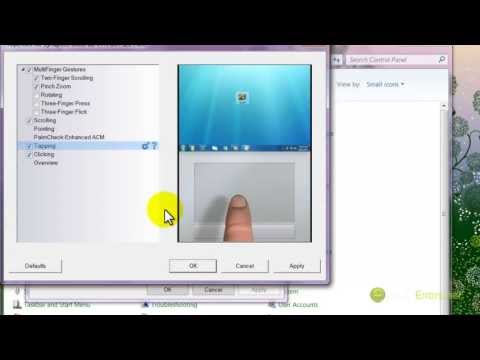
By AvoidErrors Fix Touchpad Tap to click doesn't work by AvoidErrors
Double Click Not Working on Laptop Touchpad

By Tech Valley JH Double Click Not Working on Laptop Touchpad by Tech Valley JH
Fix Two Finger Scroll Not Working on windows 1011
By The Geek Page Fix Two Finger Scroll Not Working on windows 1011 by The Geek Page

Title: double click show properties , 100 Fix . 2022
Channel: Tech Niick
double click show properties , 100 Fix . 2022 by Tech Niick
Laptop Wifi Hotspot
Acer Touchpad Double-Click Disaster? FIX IT NOW!
If you're reading this, chances are you're intimately familiar with the Acer touchpad double-click saga. That frustrating, erratic behavior – the unintended file openings, the accidental text selections, the overall feeling of a touchpad possessed by a mischievous digital gremlin. We understand. We've been there. And, more importantly, we've found the solutions. This isn’t just a collection of generic troubleshooting steps; this is a deep dive into the core issues plaguing Acer touchpads and the precise, actionable steps you can take to banish the double-click demon for good. Let's get started.
Understanding the Acer Touchpad's Troubles: Pinpointing the Culprit
Before we dive into the fixes, let's unpack why this is happening. Knowing the underlying cause empowers you to choose the most effective solution and, critically, prevent future recurrences. Several factors contribute to the Acer touchpad double-click problem. These range from software glitches to hardware nuances.
Driver Corruption: The Digital Saboteur
Driver issues are prime suspects. Your touchpad's driver acts as the translator between your hardware and your operating system. If this translator is corrupted, outdated, or improperly installed, it can wreak havoc. Imagine a garbled phone line: the messages get misinterpreted, leading to erratic behavior, including -- you guessed it -- phantom double-clicks.
Hardware Sensitivity: A Matter of Calibration
Acer touchpads, like all touchpads, are designed to respond to pressure and movement. However, the factory calibrations aren't always perfectly tuned to every individual's touch. This can lead to the touchpad registering a single tap as a double-click, especially if your fingers are slightly more sensitive, or if you frequently rest your palm on the touchpad while typing.
Internal Conflict: Software Interference
Sometimes, the problem doesn’t originate with the touchpad itself, but with other applications running on your system. Software conflicts, especially with programs that utilize mouse input or custom settings, can inadvertently interfere with the touchpad’s processing, causing it to misinterpret taps.
Dust and Debris: The Physical Impediment
This might seem obvious, but a surprising number of touchpad issues arise from simple, physical blockages. Dust, crumbs, and general debris can accumulate on the touchpad surface, creating inconsistent pressure and triggering unintended clicks.
Outdated Firmware: The Oversight Factor
Touchpad firmware, similar to the drivers, also requires occasional updates. These updates often include performance enhancements, bug fixes and calibration improvements. Ignoring these updates can leave you susceptible to a range of issues, including the double-click problem.
The Fixes: Your Arsenal of Solutions
Now, for the moment you've been waiting for: the solutions. We've meticulously compiled a series of remedies, ranging from the simplest quick fixes to more involved, yet highly effective, deep-dives.
1. The Restart Ritual: A Simple Yet Powerful First Step
It sounds simplistic, but a full system restart can often resolve seemingly complex issues, including those plaguing your Acer touchpad. This simple action clears temporary files, closes background processes, and reloads the operating system, effectively resetting the touchpad's functionality. Before you delve into anything more complicated, give your Acer laptop a complete restart.
2. Driver Update: The Digital Doctor's Prescription
Updating your touchpad driver is one of the most critical steps. Here’s how:
- Method 1: Device Manager:
- Right-click the Windows Start button and select "Device Manager."
- Expand the "Mice and other pointing devices" section.
- Right-click on your touchpad (likely named something like "Synaptics SMBus Touchpad" or "HID-compliant mouse") and select "Update driver."
- Choose "Search automatically for drivers." Windows will search for and install the latest available driver.
- Restart your computer after installation.
- Method 2: Manufacturer's Website:
- Visit the Acer support website.
- Enter your exact laptop model number.
- Navigate to the "Drivers and Manuals" section.
- Download the latest touchpad driver specific to your laptop model and operating system.
- Run the downloaded installation file and follow the prompts.
- Restart your computer after installation.
3. Driver Rollback: Reversing Course for a Better Experience
If the double-clicking began after a recent driver update, the new driver might be the problem. Rollback to the previous version:
- Open "Device Manager" (as described above).
- Right-click on your touchpad.
- Select "Properties."
- Go to the "Driver" tab.
- If the "Roll Back Driver" button is active, click it. This will revert to the previously installed driver.
- Restart your computer.
4. Touchpad Sensitivity Adjustment: Fine-Tuning for Precision
Windows offers customizable touchpad sensitivity settings that can mitigate the double-click problem.
- Method 1: Windows Settings:
- Press the Windows key + I to open "Settings."
- Click on "Devices," then "Touchpad."
- Adjust the "Touchpad sensitivity" slider. Experiment with "Medium" or "Low" settings.
- Test the touchpad after each adjustment.
- Method 2: Manufacturer Software (if applicable):
- Some Acer laptops have pre-installed touchpad software (e.g., Synaptics).
- Look for an icon in your system tray (bottom right corner of your screen).
- Open the software and navigate to the sensitivity or gesture settings.
- Adjust the clicking and tapping settings.
- Experiment with disabling "Tap to click" if the issue persists.
5. Cleanliness is Next to Godliness: The Physical Cleanup
A dirty touchpad can cause all sorts of issues. Make sure you regularly clean the surface.
- What to Use: A slightly damp (not wet) microfiber cloth is ideal. Isopropyl alcohol (70% or higher) can be used for more stubborn grime, but apply it to the cloth, not directly to the touchpad.
- How to Clean: Gently wipe the touchpad surface in a circular motion. Avoid excessive pressure.
- Frequency: Clean your touchpad at least once a week, or more frequently if you use your laptop in dusty environments.
6. Disable and Re-Enable: A Quick Reset Technique
Briefly disabling and then re-enabling your touchpad can reset its internal processes.
- Open "Device Manager."
- Expand "Mice and other pointing devices."
- Right-click on your touchpad.
- Select "Disable device."
- Wait a few seconds.
- Right-click on the touchpad again and select "Enable device."
- Test the touchpad functionality.
7. Software Conflicts: Identifying and Resolving Interference
Certain software applications can interfere with touchpad functionality.
- Identify Suspicious Software: Think about programs you installed recently that use mouse input, drawing applications, or those that customize cursor behavior.
- Close Suspicious Applications: Close the applications one by one and test the touchpad after each closure.
- Update or Reinstall: If you identify a culprit, try updating the software or reinstalling it.
- Alternative Configuration: Some applications have configurations that let you disable touchpad behaviour. Consult the software’s help documentation.
8. Firmware Update: The Overlooked Factor
While less common than driver updates, touchpad firmware updates can significantly enhance performance.
- Check Acer Support: Visit the Acer support website and enter your laptop model.
- Look for Firmware: Navigate to the "Drivers and Manuals" section. Search for "Touchpad Firmware" or "Input Device Firmware."
- Follow Instructions: If an update is available, download it and follow the manufacturer's instructions for installation.
- Restart Your Computer: After the update, restart your computer.
9. Advanced Troubleshooting: The Final Assault
If the above steps fail, more advanced troubleshooting might be needed.
- Safe Mode: Boot your computer into Safe Mode (press F8 during startup for older versions of Windows, or access the recovery options in newer versions). If the double-clicking disappears in Safe Mode, the issue is likely caused by a third-party program.
- System Restore: Use System Restore to revert your system to a previous state. Choose a restore point from before the double-clicking problem started.
- Reinstall Windows: As a last resort, reinstalling Windows can eliminate software conflicts. Warning: This will erase your data. Back up important files beforehand.
10. Hardware Examination: The Final Frontier
In extremely rare cases, the issue may be a hardware defect:
- Physical Damage: Do you see any physical damage to the touchpad surface?
- Acer Support: If you've exhausted all software solutions, contact Acer support or a qualified computer repair technician.
Preventative Measures: Staying Ahead of the Curve
Once you've resolved the double-click issue, take these steps to prevent it from returning:
- Keep Drivers Updated: Regularly check for and install driver updates for your touchpad.
- Clean Your Touchpad Regularly: Maintain a clean touchpad surface.
- Review Installed Software: Be mindful of any new software you install
