hp laptop keboard not working to login

Title: Fix Some keys on Laptop Keyboard Not Working in Windows 10 Solve keyboard keys Won't typing
Channel: Victor Explains
Fix Some keys on Laptop Keyboard Not Working in Windows 10 Solve keyboard keys Won't typing by Victor Explains
hp laptop keyboard not working on login screen, laptop login keyboard not working, why keyboard is not working in hp laptop, why is my keyboard locked on my hp laptop, why did my keyboard stop working on my hp laptop, hp laptop unresponsive keyboard
HP Laptop Keyboard DEAD? Login Fix Inside!
My HP Laptop Keyboard Is Refusing to Cooperate! A Login Rescue Mission
Picture this: You're poised to conquer your day. Maybe you have emails piling up, or perhaps an important deadline looms. You reach for your trusty HP laptop, ready to dive in. Then, disaster strikes! The keyboard, that essential portal to your digital world, is unresponsive. Complete and utter silence where keystrokes should be. Don’t panic! This isn’t always a sign of doom. In fact, many times, there’s a fix lurking just around the corner.
The Dreaded Keyboard Stalemate: Initial Troubleshooting Steps
A dead keyboard can stem from a number of sources. First and foremost, let’s ensure the basics are covered. Double-check that your HP laptop is actually on. Sounds silly, I know, but it happens! Next, inspect the keyboard itself. Are any keys physically stuck or visibly damaged? Debris, like crumbs or dust, can sometimes interfere with key functionality. Try gently blowing compressed air around the keys. This might dislodge any obstructions.
Furthermore, consider whether the issue is a system-wide problem. Does your mouse work? Can you use an external keyboard? If an external keyboard functions correctly while the built-in one remains dead, it strongly suggests an issue specific to your laptop's keyboard. However, if both keyboards are unresponsive, the problem likely resides deeper within the system.
Pinpointing the Source: Software Glitches vs. Hardware Woes
Troubleshooting further involves differentiating between software and hardware problems. The good news? Software glitches are often easier to resolve. A simple restart might be your saving grace. Moreover, a full system shutdown, followed by a subsequent reboot, can refresh the system's memory and resolve minor conflicts that might be causing the keyboard to malfunction.
In addition, a driver update may be necessary. Drivers are the software that allows your operating system to communicate with your hardware. Outdated or corrupted keyboard drivers can lead to performance issues. Head to the Device Manager (search for it in the Windows search bar or access it through your control panel) and locate your keyboard. Look for any warning symbols, such as an exclamation mark, next to the keyboard device. If present, right-click on the device and select “Update driver.”
Deep Dive into Driver Troubles and The System Configuration
If updates fail, consider uninstalling and reinstalling the keyboard driver. This sometimes forces a fresh start. In the Device Manager, right-click on your keyboard device and choose “Uninstall device.” Then, restart your computer, and Windows will automatically attempt to reinstall the driver. Remember to always back up your important files before making significant system changes.
Besides, check your system configuration. Some settings can inadvertently disable the keyboard. For example, ensure that the “Filter Keys” feature isn’t enabled. Filter Keys instructs Windows to ignore repeated keystrokes or keystrokes held down for long periods. You can easily find this setting within your keyboard settings in the Control Panel.
Hardware Assessment: Exploring the Mechanical Side
However, software isn’t always the culprit. Sometimes, the problem is hardware-related. If you've exhausted all software-based solutions, it's time to look at the physical components. Examine the keyboard cable connection. If your HP laptop has a keyboard that is modular, there's a good chance that there is a ribbon cable that is connected to the motherboard. A loose connection could explain the problem. You should never undertake any hardware adjustments without professional assistance or without possessing the appropriate expertise.
Moreover, a faulty keyboard is always a possibility. Keyboards have moving parts, and these parts can wear out over time. Dropping the laptop or exposing it to liquid spills can shorten its lifespan significantly. In such cases, keyboard replacement might be the only resolution.
Login Bypass Strategies: Regaining Access to Your System
What if you cannot log in? With a non-functioning keyboard and login screen staring you down, you might feel trapped. Thankfully, there are workarounds. If you previously set up a password reset disk, you can use it to regain access to your account. Also, if you have another user account with administrative privileges, you could use that account to troubleshoot the primary user account.
Alternatively, consider using the on-screen keyboard. Windows provides an on-screen keyboard that you can activate from the login screen. Click on the “Ease of Access” icon (usually located in the bottom right corner of the login screen). Then, select “On-Screen Keyboard.” Using your mouse, you can then type in your password and subsequently log in.
When to Seek Professional Repair
When all else fails, it’s time to consider professional help. If your keyboard still refuses to cooperate after trying the above methods, a hardware issue may be to blame. In addition, issues related to your system's motherboard or other internal components might require the expertise of a qualified technician. Attempting repairs beyond your skill level could potentially worsen the problem or cause further damage.
Conclusion: Back in the Digital Saddle
Losing keyboard functionality is definitely frustrating. However, by understanding the common culprits and testing appropriate solutions, you can often fix the problem yourself. With patience and persistence, you'll be typing away again in no time. So, take a deep breath, work through the troubleshooting steps, and prepare to reclaim control of your HP laptop. You've got this!
Surface Laptop 3 Brightness Issues? This SHOCKING Fix Worked!HP Laptop Keyboard DEAD? Login Fix Inside!
Hey everyone, it's your friendly neighborhood tech guru here, ready to tackle one of the most frustrating problems known to laptop users: a dead keyboard! We've all been there, staring blankly at our HP laptop, frantically clicking a mouse while our fingers long for the familiar click-clack of keys. But before you start panicking and envisioning a total meltdown of your precious tech, let's dive in and explore some solutions. We're not just going to throw generic fixes at you; we're going to get personal and relatable, because let's face it, technology can be a real pain in the… well, you know.
1. The Dreaded Silent Treatment: Recognizing the Keyboard's Demise
First things first: is your keyboard really dead? Sometimes, it's just a temporary glitch. Think of it like a grumpy toddler refusing to eat their broccoli. Before you assume the worst, try these quick checks:
- Restart the laptop: This is the classic first-aid for many tech troubles. A simple reboot often clears up minor software hiccups that might be causing the keyboard to malfunction.
- External keyboard test: Plug in a USB keyboard or connect a wireless one. Does that work? If yes, it points the finger squarely at your laptop keyboard. If no, the problem might be deeper.
- Caps Lock/Num Lock indicators: Do the lights on your HP laptop keyboard respond when you press these keys? If they don't, your keyboard likely isn't even receiving a signal.
If you've tried these things, and still nothing, we're dealing with a potential keyboard casualty. But don't worry, we'll resurrect it yet!
2. Is it Software or Hardware? Decoding the Culprit
This is the crucial question! Diagnosing the root cause is like playing detective. Is the problem software-related, or is it a physical hardware issue? This distinction guides us toward the right fix.
- Software Issues: These often involve corrupted drivers, software conflicts, or operating system glitches.
- Hardware Issues: These involve physical damage, spilled liquids (the dreaded coffee incident!), or internal component failure.
Knowing the difference will significantly impact what we do next. Imagine a leaky faucet – you wouldn't replace the whole plumbing system if it was just a loose washer!
3. Driver Dilemma: Reinstalling Keyboard Drivers
Let's start with the software. Your keyboard relies on specific drivers to communicate with your operating system. Sometimes, these drivers become corrupted, outdated, or simply disappear into the digital ether. Here's how to reinstall them:
- Access Device Manager: Right-click the Start button (or press Windows key + X) and choose Device Manager.
- Find the Keyboard Section: Expand the "Keyboards" section. You might see your keyboard listed there. Sometimes it just says "Standard PS/2 Keyboard" or something similar.
- Uninstall: Right-click your keyboard device and select "Uninstall device."
- Restart: Restart your laptop. Windows should automatically reinstall the drivers (fingers crossed!).
Think of it like giving your keyboard a clean slate and teaching it to speak the language of your laptop all over again.
4. The Hidden Tech of Keyboard Shortcuts: Booting Into Safe Mode
Safe Mode is a diagnostic environment where Windows loads with a minimal set of drivers and files. If your keyboard works in Safe Mode, it strongly suggests a software conflict is the culprit. If not, we can rule out the software for the most part.
- Enter Safe Mode: The method for entering Safe Mode varies slightly depending on your Windows version. Generally, you'll need to repeatedly press a key (like F8 or Shift + F8) during startup. Alternatively, you can usually access it through the Recovery options in Settings > Update & Security > Recovery > Advanced Startup.
- Test the Keyboard: Once in Safe Mode, see if your keyboard functions.
5. Unsticking Keys and Dust Bunnies: A Physical Inspection
Sometimes, the solution is surprisingly simple. Dust, crumbs, or sticky substances can get lodged under your keys, preventing them from working.
- Turn off and Unplug: Always a good idea before you start jabbing at your laptop.
- Gentle Cleaning: Use compressed air to blow out debris. You can also use a soft brush (like a toothbrush) to gently clean around the keys.
- Sticky Situations: For sticky keys, you might be able to gently remove the keycap (be very careful—research your specific keyboard model first!) and clean underneath. But this is a risky move, so proceed with caution!
This is like giving your laptop a good spring cleaning.
6. The Liquid Spill Saga: Damage Control
Ah, the dreaded liquid spill. Coffee, soda, water… all can wreak havoc on electronics. Time is of the essence here!
- Immediate Action: Turn off the laptop immediately! Unplug it. Remove the battery (if possible).
- Inversion and Drying: Turn the laptop upside down and let it drain and dry. Don't use a hairdryer – the heat can cause more damage. Allow it to dry for several days.
- Professional Help: If the spill was significant, or if you're uncomfortable, take it to a professional repair shop. Time is of the essence to minimize damage and prevent corrosion.
7. Hardware Hiccups: Assessing Internal Damage
If software fixes and external cleaning don't work, we may be facing a more serious internal hardware issue.
- Ribbon Cable Check: The keyboard connects to the motherboard via a ribbon cable. This cable can sometimes become loose or damaged. Opening up your laptop (with caution, and only if you're comfortable!) to reseat this cable might work. Note: this can void the warranty, so proceed with care.
- Keyboard Replacement: In many cases, a faulty keyboard requires replacement. This is often the most effective solution to get the keyboard working again.
- Internal components: If the keyboard is plugged into the motherboard and still doesn't work, it may be a symptom of hardware failure.
8. Backing up your data and getting ready for a repair
Before sending the laptop for repair or attempting DIY fixes, be sure to backup your important data. No one wants to lose their precious files (photos, documents, etc.) during repairs. Cloud storage, an external hard drive, or USB drive can be your best friends in this situation.
9. Troubleshooting with HP Support
HP has extensive support resources available. Their website will often have troubleshooting guides, FAQs, and driver downloads specific to your laptop model.
- Visit the HP Support Website: Go to HP's official website and navigate to the support section.
- Search by Model Number: Enter your laptop's model number (usually found on the bottom of the laptop or under the battery).
- Browse Support Articles: Look for keyboard-related troubleshooting guides.
10. The External Keyboard Solution: A Temporary Lifesaver
While you're working on fixing (or replacing) your internal keyboard, an external keyboard can be a lifesaver.
- USB and Wireless Options: USB keyboards are plug-and-play. Wireless keyboards connect via Bluetooth or a USB receiver.
- Accessibility: You can continue working on your laptop while you troubleshoot the primary issue.
11. BIOS Updates: Exploring Advanced Fixes
BIOS (Basic Input/Output System) updates can sometimes resolve hardware compatibility issues. However, this process can be risky and, if done incorrectly, can brick your laptop. Always download BIOS updates from the manufacturer's website and carefully follow the instructions.
12. The "Sticky Key" Solution
Occasionally, the keyboard will become sticky, and not much will fix it. The best option in such a situation is to replace the keyboard. However, a few methods may help temporarily.
- Rubbing alcohol: If the issue is due to sticky substances, rubbing alcohol can sometimes dissolve them.
13. Keyboard Replacement: When to Admit Defeat
Sometimes, the keyboard is simply beyond repair. If all other attempts have failed, it's time to face the music.
- Professional Repair: A professional repair shop can replace the keyboard.
- DIY Replacement: If you have some tech savvy and are comfortable, you might be able to replace the keyboard yourself. Research your laptop model and find tutorials before you begin. Replacement keyboards and toolkits can be found online.
14. Prevention Is Key: Keeping Your Keyboard Happy
Once you get your keyboard working again, you'll want to prevent future problems.
- Regular Cleaning: Clean your keyboard regularly with compressed air or a soft brush.
- Avoid Eating/Drinking Near Laptop: This is a recipe for disaster!
- Keyboard Cover: A keyboard cover can protect against spills, dust, and debris.
15. The Farewell
We've looked at various solutions, from quick fixes to more complex repairs. Let's hope one of these methods get your HP laptop keyboard clicking again!
Conclusion
So, there you have it! A comprehensive guide to tackling a dead keyboard on your HP laptop. We've covered everything from the basic checks to in-depth troubleshooting, and even discussed prevention. Remember, don't panic! Take a deep breath, follow the steps carefully
ROG Laptop Keyboard Light: FIX This Annoying Problem NOW!How to Lock & Unlock Keyboard in Windows 11 10 8 7 Turn On Off keyboard lock
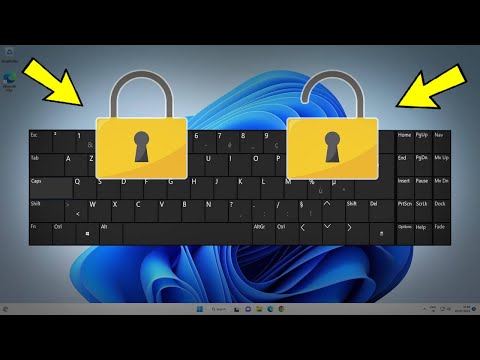
By Victor Explains How to Lock & Unlock Keyboard in Windows 11 10 8 7 Turn On Off keyboard lock by Victor Explains
Fix HP Keyboard Not Working Windows 1087 - 3 Solutions 2025

By TechFixIT Fix HP Keyboard Not Working Windows 1087 - 3 Solutions 2025 by TechFixIT
How To Fix HP Laptop Keyboard Not Working in Windows 10

By Cap Trong Nam - How To How To Fix HP Laptop Keyboard Not Working in Windows 10 by Cap Trong Nam - How To

Title: HP Keyboard Not Working - 6 Fix
Channel: Tech Bachhal
HP Keyboard Not Working - 6 Fix by Tech Bachhal
Working With Laptop
HP Laptop Keyboard DEAD? Login Fix Inside!
Navigating the digital landscape with a malfunctioning laptop keyboard can feel like traversing a treacherous terrain. The simple act of typing, essential for communication, work, and entertainment, becomes a frustrating ordeal. This guide serves as your compass and map, designed to illuminate the path toward resolving the "HP Laptop Keyboard DEAD" dilemma, ensuring your digital journey remains smooth and uninterrupted. We’ll delve into the likely causes behind keyboard failures, providing actionable login fixes and troubleshooting strategies you can implement immediately.
Understanding the Keyboard’s Vital Role
The keyboard is the primary interface between you and your HP laptop. It translates your physical keystrokes into digital commands. When this critical link breaks down, your ability to interact with the operating system, access applications, and, critically, log in, is severely compromised. Before we begin, let’s acknowledge that keyboard issues can stem from various sources, from simple software glitches to more complex hardware failures.
Initial Troubleshooting: A Series of Quick Checks
Before assuming a complete hardware failure, adopt a methodical approach. These initial steps often resolve common, easily fixable problems:
- The Obvious: Power and Connection: Ensure your laptop is powered on and that the AC adapter is correctly connected. A drained battery can sometimes disrupt keyboard functionality, especially during boot-up.
- External Keyboard Test: Connect an external USB keyboard. If the external keyboard functions correctly, the issue points directly to your laptop’s integrated keyboard. If the external keyboard also fails, the problem might lie elsewhere, potentially with the operating system or with the USB port.
- Restart, Restart, Restart: This age-old solution often works wonders. A simple restart can clear temporary software glitches that might be interfering with keyboard operation. Hold down the power button until the laptop turns off then turn it back on.
- BIOS Access: During startup, typically by pressing the F2, Del, or Esc keys repeatedly, enter the BIOS (Basic Input/Output System) setup. Within the BIOS, test the keyboard. If the keyboard works in the BIOS, the problem is likely software-related, such as the operating system or a driver issue.
- The Num Lock Indicator: The Num Lock key is activated. Try toggling the Num Lock key to see if the numeric keypad keys are working.
Software-Related Login Fixes
If the initial checks leave you with a non-functional keyboard, consider the following software-related solutions:
- Driver Reinstallation: Corrupted or outdated keyboard drivers are frequent culprits.
- Access Device Manager: Right-click the Start menu, select "Device Manager."
- Locate the Keyboard: Expand the “Keyboards” section.
- Uninstall and Restart: Right-click your keyboard device (likely labeled as “Standard PS/2 Keyboard” or something similar) and select "Uninstall device." Confirm. Restart your laptop. Windows will automatically attempt to reinstall the correct driver upon restart.
- Keyboard Troubleshooter: Windows has a built-in keyboard troubleshooter.
- Open Settings: Press the Windows key + I.
- Navigate to Update & Security or System: Then, Troubleshoot
- Run Troubleshooter: Locate and run the “Keyboard” troubleshooter. Follow any on-screen instructions.
- System Restore (A Safety Net): If the keyboard failure coincided with a software installation or update, using System Restore can revert your system to a previous state before the issue arose.
- Search for System Restore: Type "create a restore point" in the Windows search bar and select it.
- Initiate Restore: Click "System Restore" and follow the prompts. Choose a restore point from before the keyboard problem started.
Hardware-Focused Troubleshooting: When Software Isn't the Answer
If software fixes prove ineffective, it's time to investigate potential hardware issues:
- External Debris Inspection: Occasionally, food crumbs, dust, or other debris can get lodged beneath the keys, preventing proper keystroke registration.
- Power Down: Turn off and unplug your laptop.
- Gentle Cleaning: Use compressed air (available at most electronics stores) to gently blow out debris from under the keys. Avoid excessive force, as this can damage the keyboard.
- Key Removal (Cautiously): If cleaning with compressed air doesn't work, you can carefully remove individual keys. Use a small, non-scratching tool (like a plastic spudger or a thin credit card) to gently pry the key caps from their housings. Clean the area beneath the key and replace the key carefully. Refer to your laptop’s manual for specific key removal instructions as HP laptop designs vary.
- Loose Connection Inspection (For Technical Users): This step requires technical expertise and caution. If you’re comfortable working with electronics, you can access the keyboard's internal connection to the motherboard.
- Power Down and Disconnect: Completely shut down your laptop and unplug the power adapter. Remove the battery (if removable).
- Consult the Service Manual: Search online for your HP laptop model’s service manual. These manuals often provide detailed disassembly instructions.
- Locate the Keyboard Connector: Carefully disassemble the laptop to access the keyboard. Identify the ribbon cable that connects the keyboard to the motherboard. This is usually a small, flexible cable.
- Inspect and Reseat: Gently detach the ribbon cable from its connector on the motherboard. Inspect the connector for any signs of damage or corrosion. Reconnect the cable, ensuring it is properly seated.
- Reassemble and Test: Reassemble the laptop and power it on to test the keyboard.
- Keyboard Replacement (The Last Resort): If all other troubleshooting attempts fail, the keyboard might be physically damaged and require replacement.
- Identify Your Model: Precise keyboard compatibility is crucial. Locate your HP laptop’s model number (usually found on a sticker on the bottom of the laptop or under the battery).
- Find a Replacement Keyboard: Search online retailers (Amazon, eBay, etc.) for a replacement keyboard specifically designed for your HP laptop model.
- Installation: The installation process varies based on the laptop model. Follow the instructions provided the service manual for the laptop or the instructions that come with the new keyboard.
- Consider Professional Repair: If you are uncomfortable performing the replacement yourself, consult a qualified laptop repair technician.
Bypassing the Keyboard for Login and Recovery
When the keyboard is completely unresponsive, you still have options for logging into your HP laptop and accessing critical data:
- On-Screen Keyboard: Windows includes an on-screen keyboard feature.
- Accessing the On-Screen Keyboard at Login: Click the "Ease of Access" icon (it looks like a clock with a person in it) in the bottom-right corner of the login screen. Select "On-Screen Keyboard." Use your mouse to type your password and log in.
- Activating the On-Screen Keyboard through Settings: After you log in (if possible), go to Settings > Ease of Access > Keyboard. Turn on the "Use the On-Screen Keyboard" switch.
- External USB Keyboard (Temporary Solution): As mentioned earlier, connecting an external USB keyboard is a straightforward way to bypass a malfunctioning internal keyboard. Use this to log in, troubleshoot, or back up your data.
- Password Reset (If You've Forgotten Your Password): If you cannot log in because you have forgotten your password and the keyboard is not working, you might need to reset your password using a password reset disk, or by contacting HP support if you have an HP account. Note that these methods can vary depending on your security settings.
Preventative Measures for Keyboard Longevity
To minimize the risk of future keyboard failures, practice these preventative measures:
- Regular Cleaning: Regularly clean your keyboard to prevent the buildup of dust, debris, and crumbs. Use compressed air or a soft cloth.
- Proper Handling: Avoid spilling liquids on your keyboard. Keep food and drinks away from your laptop.
- Gentle Typing: Avoid excessive force while typing.
- Protect Your Laptop: Use a laptop case or sleeve during transport to prevent it from being damaged.
- Software Updates: Consistently update your operating system and drivers to ensure optimal performance and minimize compatibility issues.
Conclusion: Regaining Control
Keyboard failures can disrupt workflow and cause frustration. By methodically following the troubleshooting steps outlined in this guide, you can diagnose and resolve the "HP Laptop Keyboard DEAD" issue, allowing you to quickly regain full functionality. Remember to be patient, persistent, and cautious. In many cases, a simple fix will be sufficient to restore your keyboard to its former glory. In more complex situations, the knowledge provided herein will help you make informed decisions about repair or replacement. By understanding the potential causes and implementing the suggested solutions, you can confidently navigate your troubleshooting process and return to enjoying your HP laptop to its fullest potential.
