laptop adapter not working

Title: How to Open and Fix Laptop AC Adapter without Damaging. DC cable and Capacitors Replacement
Channel: Electronics&Computers
How to Open and Fix Laptop AC Adapter without Damaging. DC cable and Capacitors Replacement by Electronics&Computers
laptop adapter not working, laptop charger not working, laptop charger not working lenovo, laptop charger not working dell, laptop charger not working hp, laptop power supply not working, laptop charger not working acer, laptop charger not working asus, laptop power cord not working, laptop charger not working when plugged in
Laptop Adapter DEAD? 😱 FIX This NOW!
Laptop Adapter SOS: Reviving Your Power Source & Saving Your Sanity!
Oh no! Your laptop screen is fading to black. The dreaded silence of a dead charger descends. Fear not, fellow tech traveler! This isn't the end of the digital world. More likely, it’s a minor setback easily overcome. Let’s dive right into how to troubleshoot this common problem and get you back online, pronto.
Is It Really Dead? Preliminary Checks Before the Deep Dive
Before you declare your adapter a lost cause, let's perform a swift diagnosis. First, assess the situation calmly. Check the obvious culprits, you know? Is the power cord plugged securely into the wall outlet and your laptop? Ensure the power outlet is functioning correctly. Moreover, try another device in the same outlet. This quickly reveals if the issue lies within your power source setup. Next, examine the adapter itself. Look for any visible signs of damage, like frayed wires or cracks in the casing. Any damage would indicate the need for a new adapter.
Power Adapter Anatomy and Potential Failures
The humble laptop adapter is a powerhouse of technology. It acts as a crucial bridge between your laptop and the electrical grid. The adapter converts AC power from the wall outlet to the DC power your laptop needs. Consequently, several components can experience failure. Internal fuses can blow. Capacitors might degrade. Furthermore, wires can short circuit due to wear and tear. Thus, a thorough understanding of these components helps pinpoint the issue.
Troubleshooting Steps: Bringing Your Adapter Back to Life
So, what's next? Start with a few simple steps to revive your adapter.
- The Wall Outlet Test: As mentioned previously, ensure the outlet is providing power. Try plugging in a lamp or another appliance. If the lamp doesn't work, the outlet is the problem.
- The Cable Inspection: Carefully scrutinize the power cords. Look for any kinks, bends, or exposed wires. Replace any damaged cords.
- The Adapter's LED: Many adapters have a small LED light. This helps signify the adapter's operational state. If the light is off, the adapter may not be receiving power.
- The Laptop's Battery Check: Sometimes, the issue can be with the laptop's battery. If your battery is completely drained, the laptop might not turn on even with a working adapter. Charge the laptop with another power source to confirm.
Advanced Diagnostics: When It Gets Technical
If the basic checks don't solve the problem, it's time for more in-depth troubleshooting. This could involve testing the adapter's voltage output with a multimeter. You should only perform this if you are comfortable working with electrical components.
- Multimeter Marvels: A multimeter is your friend. You can use it to check the output voltage of your adapter. Compare it to the adapter's specifications. If the voltage is significantly lower, the adapter is likely faulty.
- The Smell Test: This is a less technical but sometimes telling method. Does the adapter smell like burnt plastic or electronics? Such scents are a strong indicator of internal damage.
- Adapter Replacement: Sadly, some adapters are beyond repair. If your troubleshooting leads to a dead end, it’s probably time for a replacement.
Choosing the Right Replacement: Ensuring Compatibility
Finding a new adapter seems easy. However, choosing the right replacement is crucial. Here's what to consider.
- Voltage and Amperage: Your new adapter must match the voltage and amperage specifications of your laptop. These details are usually printed on the original adapter. They are also listed on the bottom of your laptop.
- Connector Type: Make sure the new adapter has the correct connector for your laptop's charging port. Connectors vary in size and shape. Verify the correct match before purchasing.
- Brand and Quality: Opt for a reputable brand. This reduces the risk of premature failure. Consider reading reviews before making a purchase.
- Online vs. Retail: Both online and brick-and-mortar stores offer adapters. Compare prices and availability. Keep in mind that you also might get a warranty.
Prevention is Key: Extending Adapter Lifespan
Prevention is better than cure. Thus, consider these tips to prolong your adapter's life.
- Handle with Care: Avoid bending the power cords sharply. This prevents damage to the internal wires.
- Proper Storage: Store your adapter in a cool, dry place. Avoid exposing it to extreme heat or moisture.
- Surge Protection: Use a surge protector to safeguard your adapter from power surges. These surges can damage the adapter's internal components.
- Ventilation is Vital: Ensure the adapter has adequate ventilation while in use. Overheating can shorten its lifespan.
Beyond the Adapter: Other Power Issues
It is essential to consider other potential problems. Sometimes the problem is not the adapter itself. The issue may lie with the laptop's charging port or the battery. For this reason, always run a complete diagnostics.
- Laptop's Charging Port: Inspect the charging port for damage. Loose connections can prevent charging. However, if the charging port is damaged, you may need professional repair.
- Battery Health: A failing battery can mimic adapter problems. If your battery is old, it may no longer hold a charge. So, consider a battery replacement if necessary.
- Motherboard Malfunctions: In rare cases, the issue could be with the laptop's motherboard. But, a motherboard failure could mean that the laptop is beyond economical repair.
Final Thoughts: Back to Work, Back to Play!
Dealing with a dead laptop adapter is frustrating, undeniably. However, with a systematic approach and a little patience, you can often diagnose and resolve the issue. Now, get your laptop back online and power up your productivity! Keep these tips handy, and you’ll be a power-adapter pro in no time. Good luck, and happy computing!
Dell Touchpad Dead? FIX It NOW! (Easy Steps)Laptop Adapter DEAD? 😱 FIX This NOW!
Okay, let's be real for a second. Your laptop just died. Not the dramatic, "end-of-days" kind of dead, but the "won't-turn-on-because-the-adapter-decided-to-take-a-vacation-to-the-electronics-graveyard" kind of dead. And let's face it, that's almost as bad. We’ve all been there. That sinking feeling in your stomach when you press the power button, and… nothing. Just a cold, unresponsive black screen. Before you start panicking about lost files and a sudden digital detox, let’s troubleshoot this together. Chances are, it's not your beloved laptop itself; it’s the humble, often-overlooked laptop adapter that's the culprit. We're going to dive deep, dissect the problem, and, hopefully, breathe life back into your digital companion. Consider this your personal rescue mission!
1. The Silent Assassin: Why Your Laptop Adapter Dies
Think of your laptop adapter as the unsung hero, the vital organ that keeps your laptop's heart pumping. It's constantly converting AC power from the wall into DC power your laptop craves. But, like any hero, it's susceptible to wear and tear, and sometimes, just plain bad luck!
- Power Surges & Fluctuations: These can fry the delicate components within your adapter quicker than you can say "overvoltage." Imagine a sudden burst of electricity – it’s like a tidal wave crashing over a tiny boat.
- Overheating: Running your laptop flat out, gaming for hours, or leaving it plugged in 24/7? That can generate a lot of heat within the adapter, potentially damaging its internal components. Think of it like running a marathon in the desert – eventually, something's going to overheat.
- Cable Damage: Bending, pulling, and twisting the cable can fray the wires inside, leading to a short circuit or an intermittent connection. It's like constantly bending a paperclip – eventually, it's going to snap.
- Age: Even the best adapters have a lifespan. Over time, components degrade, and the adapter becomes less efficient. It's the digital equivalent of your car needing a new battery.
- Cheap Adapters: Buying a knock-off or a poorly made adapter is like playing Russian roulette with your laptop. They often lack the safety features and quality materials of the original, making them more prone to failure.
2. The Tell-Tale Signs: Spotting a Bad Adapter
Fortunately, your adapter usually doesn't go out without a fight. It often gives you warning signs. Recognizing these early can save you a lot of potential headaches (and data loss).
- No Power at All: This is the most obvious sign. If your laptop won't turn on, and you've checked the outlet (more on that later!), your adapter is the prime suspect.
- Intermittent Charging: Your laptop charges, then stops, then charges again at random. This could indicate a loose connection or a failing adapter.
- Slow Charging: It takes forever to charge your battery. This could signal that the adapter isn't providing enough power. It's like trying to fill a swimming pool with a garden hose.
- Adapter Overheating: The adapter feels unusually hot to the touch, even when not under heavy load. This is a red flag!
- Strange Noises: Hissing, buzzing, or crackling sounds coming from the adapter can indicate internal damage.
- Physical Damage: Cracks, bulges, or frayed cables are all clear signs of trouble.
3. First Steps: The Obvious Checks (Don’t Skip This!)
Before you start panicking, let's do the easy stuff. We’re like digital detectives here.
- Check the Outlet: Seriously. Make sure the outlet is working. Try plugging in another device (like a lamp or your phone charger) to confirm. Sometimes, the solution is as simple as a blown fuse or a tripped circuit breaker.
- Inspect the Cable: Look closely at the cable that connects to the adapter and to your laptop. Are there any visible signs of damage, such as cuts, kinks, or exposed wires? Also, make sure the connection to the adapter and laptop are secure and not wobbly.
- Try a Different Outlet (and even a different room): Sometimes, a faulty outlet is the sneaky culprit.
- Check the Laptop's Charging Port: Sometimes, the issue isn't the adapter, but the charging port on your laptop. Inspect it for debris, bent pins, or damage. Use a flashlight and a cotton swab to gently clean the port, if needed.
4. Adapter Troubleshooting: Testing With a Multimeter (Advanced)
If the obvious checks don't reveal anything, and you're feeling tech-savvy, you can use a multimeter to test the adapter’s output. This is for experienced users only; incorrect handling can lead to electric shock!
- Safety First: Unplug the adapter from the wall and your laptop.
- Set the Multimeter: Set your multimeter to measure DC voltage (VDC), typically in the 20V or higher range.
- Probe the Output: Carefully insert the multimeter probes into the adapter’s output connector (the part that plugs into your laptop), making sure the polarity matches (positive to positive, negative to negative).
- Read the Voltage: The multimeter should display the voltage printed on your adapter (usually on a label). If the voltage is significantly lower or zero, your adapter is likely dead.
- If You're Uncomfortable… If you're unsure how to use a multimeter or are uncomfortable with electrical work, it's best to skip this step and move on to the other solutions.
5. The Adapter Swap: Do You Need a New One?
This is where things get real. If all signs point to a dead adapter and you’ve exhausted all other troubleshooting steps, it's time to consider a replacement.
- OEM vs. Third-Party: "OEM" stands for "Original Equipment Manufacturer" – these are adapters made by the same company that made your laptop. They are often more expensive but generally offer better quality and compatibility. Third-party adapters can be a more budget-friendly option, but choose a reputable brand and read reviews carefully.
- Voltage and Amperage: Make sure your new adapter matches the voltage and amperage specifications of your original adapter. This information is usually printed on the adapter itself or in your laptop's manual. Using an adapter with the wrong specifications could damage your laptop. It’s like trying to fit a square peg in a round hole – it just won’t work!
- Connector Type: Ensure the new adapter has the correct connector type for your laptop. Different brands and models use different connectors.
- Read Reviews: Before you buy, read reviews to see what other users say about the adapter’s reliability and performance. Online reviews can be a goldmine of valuable information.
6. Buying a Replacement Adapter: Where To Get One
- Laptop Manufacturer's Website: This is the safest bet for finding an OEM adapter. You'll get a guaranteed compatible product.
- Electronics Retailers: Stores like Best Buy, Amazon, and other online retailers often carry a wide selection of adapters.
- Specialized Laptop Repair Shops: These shops may have OEM or high-quality third-party adapters that are specifically designed.
7. Adapter Care: Preventing Future Failures
Once you've got your new adapter, let’s prevent another digital heartbreak.
- Proper Cable Management: Avoid bending or twisting the cable sharply. Use cable ties or clips to keep the cable neat and organized, but don't constrict it too tightly. Treat the cable with respect.
- Avoid Extreme Temperatures: Don’t leave your adapter in direct sunlight or in extremely hot or cold environments. Think of it like a delicate houseplant.
- Unplug When Not in Use: Although modern adapters can handle being plugged in, unplugging the adapter when not in use can help extend its lifespan and save a tiny bit of energy.
- Use a Surge Protector: Protect your adapter (and your laptop) from power surges by plugging it into a surge protector. It’s a small investment that can save you a big headache.
8. Battery Backup: Keeping the Power On
Your laptop's battery is its lifeline. Make sure it's in good shape and able to hold a charge.
- Regular Charging: Don’t let your laptop battery drain completely before charging it.
- Calibration: Regularly calibrate your battery (usually once a month) to ensure accurate charge readings.
- Battery Health Software: Use software (built into your operating system or available to download) to monitor your battery's health and performance.
- Battery Replacement: Eventually, your laptop battery will degrade. Be prepared to replace it when it can no longer hold a decent charge.
9. Data Backup: Protecting Your Digital Life
This is critical. A dead adapter can lead to a dead laptop, and a dead laptop can lead to lost data.
- Regular Backups: Back up your files regularly, using an external hard drive, cloud storage, or both.
- Automated Backups: Set up automated backups
This Laptop Won't Charge shorts pc computer pcrepair dell
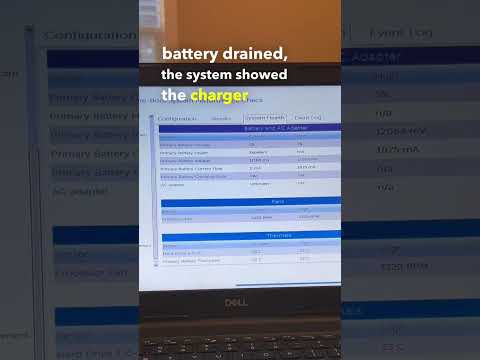
By Matt's Computer Services This Laptop Won't Charge shorts pc computer pcrepair dell by Matt's Computer Services
Mastering Laptop Adapter Repair Step-by-Step Guide and Troubleshooting Tips diy laptopcharger

By Electricquantism Mastering Laptop Adapter Repair Step-by-Step Guide and Troubleshooting Tips diy laptopcharger by Electricquantism
Laptop not charging Laptop charger repair

By Ingkong's Creation Laptop not charging Laptop charger repair by Ingkong's Creation
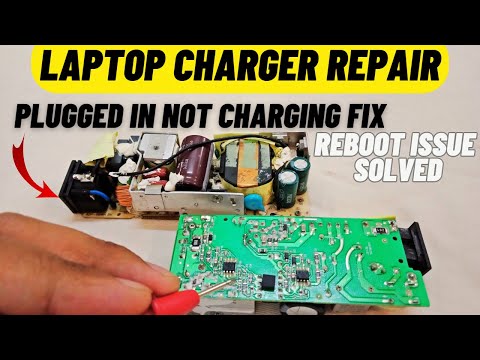
Title: How to Repair Laptop Charger Plugged In not charging charger Reboot problem solved laptop diy
Channel: Electricquantism
How to Repair Laptop Charger Plugged In not charging charger Reboot problem solved laptop diy by Electricquantism
Wifi On Laptop
Laptop Adapter DEAD? 😱 FIX This NOW!
The dreaded moment arrives: your laptop screen flickers, dims, and then… nothing. The familiar glow of the power indicator vanishes, leaving you staring at a black void. Your laptop adapter, that humble workhorse, has met its untimely demise. But before you resign yourself to a frantic search for a replacement and the accompanying downtime, take a deep breath. We're here to guide you through the troubleshooting steps you need to take, potentially saving your valuable data and your sanity.
Identifying the Culprit: Is it REALLY the Adapter?
Jumping to conclusions is tempting, especially when faced with a suddenly unresponsive laptop. Before you rush out to buy a new adapter, it's crucial to confirm that the adapter is, in fact, the problem. Let's methodically eliminate other potential causes.
The Power Outlet: This seems obvious, but it's the easiest thing to check. Is the outlet itself functioning? Plug a known working device, like a lamp or your phone charger, into the outlet to verify its power delivery. If nothing works, your outlet may be the issue. Try another outlet, preferably one on a different circuit.
The Power Cord: The power cord connecting the adapter to the wall can develop faults, especially with repeated bending and pulling. Inspect the cord for visible damage: cracks, frayed wires, or any signs of wear and tear. Try a different power cord, if you have one that matches the adapter's specifications. Often, the "kettle" cord, also known as a C5 or C7 connector, is a standard form factor.
The Adapter's Connection to the Laptop: The connection between the adapter and the laptop’s charging port is another potential point of failure. Check the connector end of the adapter for any bent or damaged pins. Carefully examine the charging port on your laptop for debris or obstruction. Use a can of compressed air to gently clean out any dust or lint.
The Laptop's Battery: A completely discharged or depleted laptop battery might prevent the system from powering on, even when plugged in. Try leaving the laptop plugged in for at least an hour, even if nothing appears to happen. This allows the battery to potentially regain enough charge to initiate the boot sequence.
The Laptop's Internal Components: Though less common, a faulty internal component on the laptop's motherboard could be the root cause. This is more difficult to diagnose without specialized equipment.
Adapter Diagnostics: Pinpointing the Problem
If you've addressed the external factors and strongly suspect the adapter, it's time for a more focused diagnostic approach.
Visual Inspection: Carefully examine the adapter itself. Look for any visible signs of damage. Are there any cracks in the plastic casing? Is there any indication of overheating, such as discoloration or a burnt smell? Do not plug a damaged adapter into an electrical outlet.
Check the Adapter's Output Voltage and Amperage: Many adapters have a sticker, usually on the bottom or side, that provides its electrical specifications. These specifications are crucial. Locate the Voltage (V) and Amperage (A) ratings. These values are critical for the proper charging of your laptop, ensuring safety while operating. The laptop requires a specific voltage, not too much, and not too little. It also requires a specific amperage. The replacement adapter ideally should be of the same voltage, and the same or higher amperage to support the maximum charging capacity of the laptop.
Multimeter Testing (Advanced): This method requires a multimeter, a tool used to measure electrical values, and some basic electrical knowledge. If you're comfortable with this tool, you can use it to check the adapter's output voltage. Set the multimeter to DC voltage mode, typically 20V or higher, and carefully place the probes on the positive and negative terminals of the adapter's output connector. Keep in mind the dangers of electrical currents. A functioning adapter should deliver the voltage indicated on its label. If the voltage is significantly lower, or if the multimeter reads 0, the adapter is likely faulty.
Important Safety Note: If you are unfamiliar with electrical testing, it's best not to attempt this. Incorrect usage can lead to electric shock or damage to the adapter or multimeter.
Troubleshooting Steps: When the Adapter Shows Signs of Life
If the adapter gives a glimmer of hope and seems to function, but your laptop refuses to cooperate, here are some additional troubleshooting steps to try.
Battery Reset (If Applicable): Many laptops have a "hard reset" procedure for the battery. This varies depending on the manufacturer and model. Often, it involves removing the battery (if it's user-removable), unplugging the adapter, and holding the power button down for 30-60 seconds. After replacing the battery (if applicable) and plugging the adapter back in, try powering on the laptop. This can help reset internal battery management systems that may be malfunctioning.
BIOS Settings: Accessing the BIOS (Basic Input/Output System) settings can sometimes provide clues or potential solutions. To access the BIOS, start the laptop and repeatedly press a specific key (usually Delete, F2, F10, or Esc) during the boot-up process. Look for settings related to power or battery management. Restore BIOS settings to default by selecting "Load Setup Defaults" or an equivalent option within the BIOS.
Driver Issues: Outdated or corrupted power management drivers can interfere with the charging process. Boot into safe mode. In Safe Mode, Windows uses a limited set of drivers and services. To enter Safe Mode, restart your computer and repeatedly press F8 or Shift + F8 before the Windows logo appears. Once in Safe Mode, you can try uninstalling and reinstalling the power management driver. The power management driver handles the power-related tasks in the system. Go to Device Manager and uninstall the battery driver, and then restart Windows.
Replacement Adapter: Choosing the Right One
If your adapter has definitively failed, you'll need a replacement. Choosing the correct adapter is essential for your laptop's safety and performance.
Identify the Correct Specifications: The most critical information is on the adapter's label. You need the voltage (V) and amperage (A) ratings. Make sure the replacement adapter has exactly the same voltage rating and the same or higher amperage rating. Using an adapter with a lower amperage rating can damage the adapter, and possibly your laptop, so this must be avoided.
Connector Type and Size: The connector that plugs into your laptop is also crucial. It seems simple, but there are various sizes and designs. Ensure the replacement adapter has the correct connector type and size. If you're unsure, you can often find this information in your laptop's manual or by searching online using your laptop's model number.
Brand and Quality: Consider the brand and quality of the adapter. While generic adapters are often cheaper, they may not be as reliable or as safe as those from reputable manufacturers. Consider purchasing from a trusted brand, in many cases, the manufacturer of your laptop.
Warranty: Check the warranty before purchasing a replacement adapter. A longer warranty period indicates the manufacturer’s confidence in its product and offers protection against future failures.
Long-Term Protection: Extending Adapter Lifespan
Preventative measures can significantly extend the lifespan of your laptop adapter.
Avoid Extreme Temperatures: Extreme heat can damage adapters. Avoid leaving your adapter in direct sunlight or in hot environments, such as a car parked in the sun.
Proper Storage: When you're not using the adapter, store it in a cool, dry place. This helps prevent wear and tear. Always unplug the adapter when you’re not using it.
Gentle Handling: Avoid bending or pulling the power cord sharply. This can damage the wires inside. When traveling, coil the cord loosely and store it in a protective case.
Surge Protection: Use a surge protector or Uninterruptible Power Supply (UPS). These devices can protect your adapter and laptop from power surges. A UPS can provide temporary power if your power source fails.
Ventilation: Ensure the adapter has adequate ventilation, especially during charging. Do not cover the adapter, as this can trap heat.
Conclusion: Reclaiming Power
A dead laptop adapter can be a frustrating experience, but with a systematic approach to troubleshooting and the correct replacement, you can quickly restore your laptop's power and get back to what matters. Remember to prioritize safety throughout the process, and don't hesitate to seek professional assistance if you're unsure about any step. Armed with this comprehensive guide, you’re well-equipped to tackle this common problem and get your device back up and running.
