hp laptop 15-bs0xx touchpad not working

Title: Fix HP Touchpad Not Working in Windows 11 10 How To Solve hp Laptop touchpad Issues
Channel: Victor Explains
Fix HP Touchpad Not Working in Windows 11 10 How To Solve hp Laptop touchpad Issues by Victor Explains
hp laptop 15-bs0xx touchpad not working, hp laptop 15 touchpad not working, hp laptop touchpad not working, hp laptop touchpad not working properly, hp 15 touchpad not working
HP Laptop Touchpad Disaster! (15-bs0xx FIX Inside!)
HP Laptop Touchpad Torment: Conquering the 15-bs0xx Curse!
Oh, the touchpad. That seemingly simple square of technology that can either be your best friend or your worst enemy. If you’re here, chances are you’re locked in a bitter rivalry with your HP laptop’s touchpad, particularly if you own a 15-bs0xx model. But fear not, friend! You are not alone, and a solution does exist. Let's embark on a journey through the touchpad trenches.
The Phantom Inputs: Recognizing the Problem
The telltale signs of a touchpad malfunction are often quite dramatic. Your cursor might become erratic, jumping wildly across the screen. You might experience unexplained clicks or phantom scrolling. Sometimes, the touchpad refuses to respond altogether! It's frustrating, I know. It can make even the simplest tasks feel like navigating a minefield. This situation, of course, requires us to act. These issues can be maddening.
Digging Deeper: Identifying the Culprits
What causes these touchpad woes? Well, like any temperamental piece of technology, several factors can contribute. Sometimes, a simple software glitch is to blame. Other times, drivers are at fault. In some cases, a hardware issue is the sneaky culprit. However, before you start panicking about costly repairs, let’s try some troubleshooting. We can try these methods. Let’s get your HP back on track.
Step-by-Step Salvation: Unveiling the Fix (Inside!)
Now, without further ado, let's dive into the solutions. These steps can help you reclaim control of your laptop. We want to restore your digital peace.
The Reboot Remedy: Begin with the simplest fix. Restart your computer. Yes, it’s the classic move! A simple reboot often clears up temporary glitches. It's like pressing the reset button. This can resolve many minor software issues.
Driver Detective Work: Next, check those drivers. Outdated or corrupted drivers are a common cause of touchpad problems. Go to your Device Manager by searching for it in the windows search bar. Expand the "Mice and other pointing devices" section. Right-click on your touchpad device (it might be called "Synaptics Touchpad" or something similar) and select "Update driver." Choose "Search automatically for drivers." Moreover, it will search for and install the latest drivers.
Uninstall and Reinstall (If Necessary): If updating doesn't work, try uninstalling and reinstalling the driver. In Device Manager, right-click the touchpad device and select "Uninstall device." Then, restart your computer. Windows should automatically try to reinstall the driver. Alternatively, you can download the latest drivers from the HP website using your laptop model number. This can be a very effective technique.
Precision Touchpad Settings: Some HP laptops feature a "precision touchpad." Check your settings. Go to Settings > Devices > Touchpad. Ensure that the touchpad is enabled and that the settings are configured to your liking. Experiment with the sensitivity options. See what adjustments work best for you.
Beyond the Basics: Advanced Troubleshooting
Perhaps you’ve already tried the above. Now, let’s explore some more advanced fixes. These methods might seem complex. Nevertheless, they are often very effective.
Clean Mouse Pad: Believe it or not, a dirty touchpad can cause issues. It can also interfere with tracking. Dust, debris, and even oils from your fingers can impact performance. Use a microfiber cloth to gently clean the touchpad surface. You can use a little isopropyl alcohol for tougher spots. Avoid harsh chemicals.
BIOS Update: An outdated BIOS can occasionally cause problems. Check the HP support website for your laptop model and download the latest BIOS update. Follow the instructions carefully during the update process. It can be a bit risky.
Hardware Check (Last Resort): If all else fails, a hardware issue might be the problem. This is rarer, but still possible. Check the touchpad cable inside your laptop. If you are comfortable with it, you can open up your laptop. Carefully inspect the connection. A loose or damaged cable can disrupt functionality. If you are not comfortable, take your laptop to a repair shop. It's usually best to consult with a professional.
Prevention is Key: Protecting Your Touchpad
Once you've fixed the touchpad disaster, take steps to prevent future problems. Use a laptop sleeve or case to protect your laptop during transport. Avoid placing heavy objects directly on the touchpad. Furthermore, periodically clean the touchpad to remove dust and grime. By practicing these simple habits you can help prevent all sorts of issues.
The Final Click: A Touchpad Triumph!
Congratulations! You’ve made it through the touchpad gauntlet. Hopefully, your HP laptop's touchpad is now functioning flawlessly. Remember, patience and persistence are crucial. Don't give up! If all else fails, professional help is always an option. Enjoy smooth, responsive cursor control. Welcome back to the digital world. Now, go forth and conquer the digital landscape!
Laptop Function Keys DEAD? FIX THIS NOW!HP Laptop Touchpad Disaster! (15-bs0xx FIX Inside!)
Alright, fellow tech travelers! Let's talk touchpads. Specifically, let's talk about that heart-stopping moment when your HP laptop's touchpad decides to stage a silent strike. You tap, you swipe, you plead… nothing. It's like your digital cursor has vanished into the Bermuda Triangle, leaving you stranded with nothing but a blank screen and a growing migraine. We've all been there, haven't we? And if you're the proud (or perhaps, frustrated) owner of an HP 15-bs0xx series laptop, you might be nodding your head vigorously right now. But fear not! We're diving deep into this touchpad turmoil, and guess what? We've got a solution. Buckle up, buttercups, because the fix is just around the corner.
The Dreaded Touchpad Freeze: A Common HP Complaint
Let's be honest. HP laptops, like any technology, aren't immune to hiccups. The touchpad issue, however, seems like a recurring character in the HP story, especially within the 15-bs0xx series. The symptoms are familiar: a completely unresponsive touchpad, erratic behavior (jumping cursor, phantom clicks), or a general feeling of digital rebellion. It's akin to your car suddenly refusing to steer – a major inconvenience, to put it mildly. This is the beginning of our exploration.
Identifying the Culprit: Why Does This Happen?
Before we rush to the fix, let's play detective. What causes these touchpad temper tantrums? It's often a combination of factors, much like a perfect storm.
- Driver Issues: This is the most common villain. Outdated, corrupted, or simply incompatible drivers are notorious for causing touchpad problems. Think of drivers as the communication pathway between your laptop and its hardware. If that pathway is blocked or broken, chaos ensues.
- Hardware Glitches: Sometimes, the touchpad itself might be the issue. A loose connection, internal damage, or manufacturing defects can lead to malfunctions.
- Software Conflicts: Certain software programs or updates can interfere with the touchpad's functionality. Imagine software as a mischievous gremlin, playing havoc behind the scenes.
- BIOS Issues: The BIOS (Basic Input/Output System) handles your laptop's basic hardware interactions. A corrupted or outdated BIOS can cause problems across the board, including your touchpad.
Step 1: The Quick & Easy Fixes – Before You Panic
Before you start tearing your hair out (or your laptop apart), let's try some quick, simple solutions. They might sound basic, but often, they're all you need.
- Restarting Your Laptop: This is the digital equivalent of "turning it off and on again". A simple reboot can often clear up temporary glitches. Consider this your first line of defense.
- Checking the Touchpad Enable/Disable Key: Most laptops have a dedicated key (often Fn + a function key like F7, F8, or F9) to enable or disable the touchpad. Make sure you haven't accidentally disabled it! It's like accidentally turning off the lights in your house.
- Cleaning the Touchpad: Dust, dirt, and debris can sometimes interfere with the touchpad's sensitivity. Give it a gentle wipe with a soft, lint-free cloth.
- Check External Devices: Disconnect any external mice or trackballs. Sometimes, these devices can interfere with the laptop's built-in touchpad.
Diving Deeper: Driver Troubles and Solutions
If the quick fixes didn't work, we need to delve into the driver jungle. This is where things get a little more technical, but trust me, we can handle it.
- Updating Your Touchpad Driver:
- Open Device Manager: Search for "Device Manager" in the Windows search bar and open it.
- Locate Your Touchpad: Expand the "Mice and other pointing devices" category. You should see your touchpad listed there (e.g., "Synaptics SMBus Touchpad").
- Update Driver: Right-click on your touchpad and select "Update driver". Choose "Search automatically for drivers".
- Restart your laptop: Once complete.
- Uninstalling and Reinstalling Your Driver: If updating doesn't work, try uninstalling the driver and reinstalling it:
- Open Device Manager (again): And locate your touchpad.
- Uninstall Driver: Right-click on your touchpad and select "Uninstall device." Make sure to check the box that says "Delete the driver software for this device" if it is present.
- Restart your laptop: Windows should automatically reinstall the driver. If not, you can manually install one.
- Downloading Drivers from HP's Website: Sometimes, the drivers Windows installs aren't the best. Go to the HP support website, enter your laptop model number (15-bs0xx), and download the latest touchpad driver specifically for your model. This is akin to getting the official blueprints and instructions from the manufacturer.
BIOS Magic: A Possible Solution
Updating your BIOS can sometimes resolve touchpad issues. This is a slightly more advanced process, so proceed with caution.
- Go to the HP Support Website: Enter your laptop model and find the "BIOS" or "Firmware" section.
- Download BIOS Update: Download the latest BIOS update for your specific model.
- Follow HP's Instructions: Carefully follow the instructions provided by HP to install the BIOS update. This usually involves running a specific program within Windows.
- Be Careful: This step is crucial. Make sure your laptop is plugged in, and do not interrupt the process. A failed BIOS update can render your laptop unusable.
Hardware Inspection: When to Seek Professional Help
If you've tried all the software fixes and still have issues, it might be a hardware problem.
- Check for Physical Damage: Carefully inspect the touchpad for any cracks, swelling, or signs of damage.
- Loose Connection While the laptop is turned off, try unscrewing the back panel, and check if the touchpad cable is connected properly to its slot.
- Contact HP Support or a Repair Technician: If you suspect a hardware issue, it's best to consult a professional. They have the tools and expertise to diagnose and repair hardware problems. This is especially important if your laptop is still under warranty.
The 15-bs0xx Specific Fix: A Secret Weapon
Now, let's get to that promised 15-bs0xx specific fix. While the above steps should work for most HP laptops, the 15-bs0xx series has a known susceptibility to touchpad woes. Here's a troubleshooting tip to consider:
- Check the Synaptics Driver: The 15-bs0xx series often utilizes a Synaptics touchpad. Ensure the driver is the latest version and specifically compatible.
- Synaptics Settings: Sometimes, within the Synaptics driver settings (accessible through the Device Manager), there might be options to disable or adjust gestures that could be causing conflicts. Experiment with these settings.
- Advanced Settings: Within the Synaptics driver, delve into the "Advanced" settings. Be careful, but sometimes these settings may offer a specific fix for the touchpads.
Preventing Future Touchpad Troubles: A Proactive Approach
Once you've fixed your touchpad, you'll want to prevent it from happening again!
- Keep Your Drivers Updated: Regularly check for and install driver updates.
- Protect Your Laptop: Avoid exposing your laptop to extreme temperatures or physical damage.
- Use a Surge Protector: Protect your laptop from power surges.
- Be Mindful of Software: Install software from trusted sources only and avoid programs known to cause conflicts.
- Regular Maintenance: Clean your touchpad regularly and run system scans from time to time.
Touchpad vs. Mouse: Choosing Your Digital Companion
Let's talk about the age-old debate: touchpad versus mouse. There's no right or wrong answer; it depends on your personal preference and the task at hand. For browsing the web, quick tasks, and working on the go, the touchpad is often convenient. For more precise tasks like graphic design or gaming, a mouse offers superior control. Consider your needs and choose the tool that works best for you. Sometimes, they are both the best option.
Conclusion: Touchpad Trauma No More!
So, there you have it! We've navigated the treacherous waters of HP laptop touchpad disasters, armed with fixes, tips, and a newfound sense of digital resilience. Remember, technology can be frustrating, but it can also be fixed. Hopefully, the steps above will help you overcome the touchpad terror and get back to enjoying your laptop experience. If you've followed our method and achieved success, we hope that you are now able to enjoy your laptop!
FAQs
My touchpad still isn't working after trying everything. What should I do?
If you've exhausted all the software fixes and are still facing issues, it's time to contact HP support or a qualified computer repair technician. There’s a high likelihood that a hardware failure is the root cause.
Is there a chance of losing data when updating drivers or the BIOS?
Always create a backup of your important data before making any significant system changes, such as driver or
HP Laptop Touchpad not Working SOLVED - Quickly & Easily

By Tech White HP Laptop Touchpad not Working SOLVED - Quickly & Easily by Tech White
HP 15s Touchpad Not Working issue Easy Fix
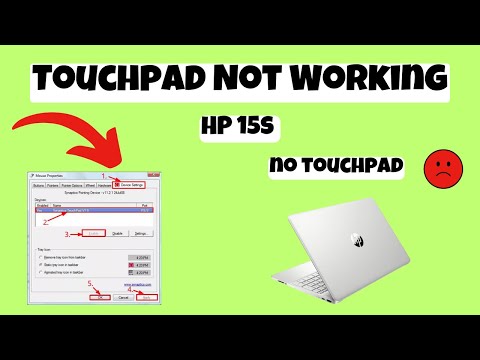
By Ultimate PC Guide HP 15s Touchpad Not Working issue Easy Fix by Ultimate PC Guide
Your laptop keyboard or touchpad stopped working That's how you fix it

By Electronics Repair School Your laptop keyboard or touchpad stopped working That's how you fix it by Electronics Repair School

Title: HP envy touchpad not working Laptop touchpad click not working
Channel: Ultimate PC Guide
HP envy touchpad not working Laptop touchpad click not working by Ultimate PC Guide
Laptop Wifi Connect
HP Laptop Touchpad Disaster! (15-bs0xx FIX Inside!)
The sleek lines of your HP 15-bs0xx series laptop promise effortless computing. Until, that is, the touchpad decides to stage a revolt. Suddenly, the cursor darts erratically across the screen, clicks go unregistered, and the simple act of navigation transforms into a frustrating battle against technology. You’re not alone. Countless users have encountered this infuriating issue, but thankfully, a solution is often closer than you think. This guide will navigate you through the common culprits and provide actionable steps to restore order to your digital domain.
Understanding the HP 15-bs0xx Touchpad Troubles
Before diving into solutions, let's pinpoint what might be causing your touchpad to misbehave. While the 15-bs0xx series covers a range of models, including the 15-bs013dx, 15-bs033cl, and others, the underlying issues often share common ground. These can range from driver conflicts to hardware malfunctions and even subtle software glitches. Knowing the potential sources helps narrow your troubleshooting efforts.
Driver Dilemmas: The Silent Saboteurs
At the heart of the touchpad's functionality lies its driver – the software bridge between your hardware and operating system. Outdated, corrupted, or incompatible drivers are frequent instigators of touchpad woes. This is especially true after Windows updates, which can sometimes disrupt driver compatibility.
Hardware Headaches: Physical Problems
While software is often the primary suspect, hardware issues cannot be ignored. A malfunctioning touchpad itself, a damaged cable connecting the touchpad to the motherboard, or even a problem with the motherboard's touchpad controller can cause erratic behavior. Physical damage, such as liquid spills or impacts, can exacerbate these issues.
Software Snags: Operating System Issues
Beyond drivers, the operating system itself can play a role. Conflicts with third-party applications, malware infections, or temporary system glitches can all contribute to touchpad problems. Windows 10 and Windows 11, while generally robust, are not immune to these software-related hiccups.
Step-by-Step Solutions: Restoring Touchpad Functionality
Now, let's get down to brass tacks. The following steps are designed to address the most common touchpad problems, offering practical solutions that you can implement at home.
1. The Driver Dance: Updating and Reinstalling
This is often the first and most effective step. Begin by updating your touchpad driver.
- Accessing Device Manager: Press the Windows key + X and select "Device Manager" from the menu. This opens a window listing all connected devices.
- Locating the Touchpad: Look for a section titled "Mice and other pointing devices." Expand it; your touchpad should be listed, often as "HID-compliant mouse" or a specific model like "Synaptics SMBus TouchPad."
- Updating the Driver: Right-click on the touchpad entry and select "Update driver." Choose "Search automatically for drivers." Windows will then attempt to find and install the latest driver. If successful, restart your laptop.
- Reinstalling the Driver: If updating doesn't resolve the issue, try reinstalling the driver. Right-click on the touchpad entry and select "Uninstall device." In the confirmation dialog, check the box to "Delete the driver software for this device" (if available). Restart your laptop. Windows should automatically attempt to reinstall the driver. If not, you will need to download the correct driver from the HP support website.
2. HP Support Assistant to the Rescue
HP laptops often come pre-loaded with the HP Support Assistant. This tool can be invaluable for diagnosing and resolving hardware and software conflicts.
- Launch the Assistant: Locate the HP Support Assistant icon, typically found in the system tray (bottom right of your screen) or in the Windows Start menu.
- Run Diagnostics: Within the HP Support Assistant, look for hardware or system tests related to the touchpad or pointing devices. Run these tests to check for any underlying hardware issues. The assistant might also offer driver updates.
- Check for Software Updates: Ensure your HP Support Assistant and other relevant HP software are up to date.
3. Touchpad Settings: Fine-Tuning for Optimal Performance
Sometimes, the problem lies not in a broken component, but in incorrect settings. Dive into your touchpad settings to adjust sensitivity and other parameters.
- Accessing Touchpad Settings: There are a few ways to access touchpad settings:
- Go to Settings > Devices > Touchpad.
- Type "touchpad settings" into the Windows search bar.
- Some laptops have a dedicated touchpad icon in the system tray.
- Adjusting Sensitivity: Experiment with the "Tap sensitivity" or "Cursor speed" settings. Reduce the sensitivity if the cursor is jumping erratically, or increase it if it's unresponsive.
- Disable Gestures Temporarily: If you suspect gesture conflicts, temporarily disable features such as two-finger scrolling or three-finger swipe gestures to see if it improves the touchpad's behavior.
4. Checking for External Factors: Cleaning and Clearing Obstacles
Even subtle external factors can affect the touchpad's function.
- Surface Inspection: Ensure the touchpad surface is clean. Dust, dirt, or even moisture can interfere with tracking. Gently clean the touchpad with a microfiber cloth.
- Palm Rejection Issues: Touchpad manufacturers use palm rejection technology in the hardware and drivers to keep the cursor from moving erratically when you rest your palm while typing. In the Touchpad settings, check that the palm rejection settings are appropriately configured.
- Physical Obstructions: Make sure nothing is physically obstructing the touchpad area. This includes your fingers, objects on the keyboard, or even excessive pressure on the palm rest.
5. BIOS Updates: Addressing Underlying System Issues
Rarely, an outdated BIOS (Basic Input/Output System) can contribute to hardware conflicts. While updating the BIOS carries some risk, it can sometimes resolve persistent touchpad issues.
- Identifying Your BIOS Version: Determine your current BIOS version by opening the System Information app (search for it in the Start menu). Look for the "BIOS Version/Date" entry.
- Downloading the BIOS Update: Go to the HP support website (support.hp.com) and enter your laptop's model number (15-bs0xx). Navigate to the "Software and Drivers" section and look for BIOS updates specific to your laptop.
- Following HP's Instructions: Carefully follow HP's instructions for updating the BIOS. This typically involves downloading a utility and running it from within Windows or creating a bootable USB drive. Important: BIOS updates should be performed with the laptop plugged into a power source to avoid power interruptions, which can damage the system. Back up any essential data before beginning the update.
6. Hardware Inspection: Examining the Touchpad's Physical Integrity
If software solutions fail, it's time to consider physical inspection.
- External Examination: Visually inspect the touchpad for any obvious damage, such as cracks, dents, or liquid spills.
- Internal Inspection (Advanced): If you're comfortable with hardware maintenance, consider opening the laptop (after disconnecting the power and removing the battery) to inspect the touchpad cable connection to the motherboard. Ensure the cable is securely connected and that there is no visible damage to the cable or the touchpad itself. Warning: This step requires technical expertise and can void your warranty. If unsure, take the laptop to a qualified repair technician.
7. System Restore: Rolling Back to a Previous State
If the touchpad problem began shortly after a software update, try using System Restore to revert your system to a previous working configuration.
- Accessing System Restore: Type "Create a restore point" into the Windows search bar and open the System Properties window. Click the "System Restore" button.
- Choosing a Restore Point: Select a restore point from a date before the touchpad issues started. Choose a restore point where the touchpad was functioning correctly.
- Following the Prompts: Follow the on-screen instructions to complete the system restore. This process may take some time and will restart your computer.
8. Contacting HP Support: Seeking Professional Assistance
If all else fails, it’s time to seek professional support.
- Gather Information: Before contacting HP support, have your laptop's model number, serial number, and a detailed description of the problem.
- Customer Support Website: Visit the HP support website (support.hp.com) to access online support, chat with a representative, or find contact information for phone support.
- Warranty Check: Determine if your laptop is still under warranty. If so, HP may cover the cost of repair or replacement.
Preventative Measures: Keeping Your Touchpad in Top Shape
Once you've resolved the issue, consider these practices to help prevent future touchpad problems:
- Regular Driver Updates: Keep your touchpad drivers consistently updated, either through Windows Update or the HP Support Assistant.
- Gentle Cleaning: Regularly clean the touchpad surface to remove dust and debris.
- Avoid Harsh Pressure: Be mindful of how much pressure you apply to the touchpad. Avoid resting heavy objects on the keyboard.
- Protect from Liquids: Keep liquids away from your laptop to prevent accidental spills.
- Safe Software Practices: Be cautious about installing software from untrusted sources, as this can sometimes lead to driver conflicts or malware
